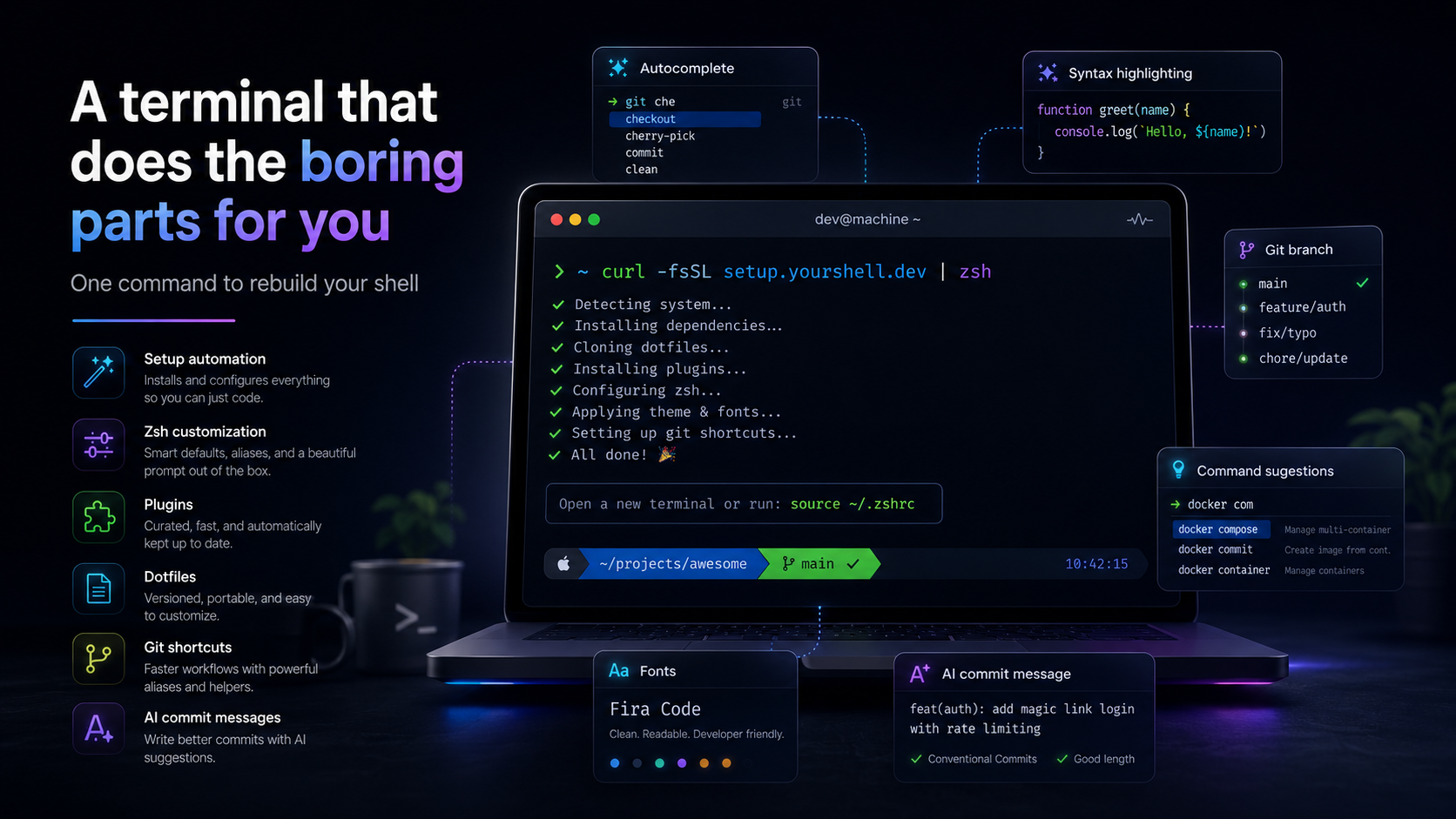
A terminal that does the boring parts for you
I reinstall my OS more often than is probably healthy. Every time, the first hour of a “fresh” laptop is spent rebuilding the same shell I had before — Oh My Zsh, the same five plugins, Powerlevel10k, the fonts I always forget the name of, and a small pile of git aliases that have crept into my muscle memory over the years. So I stopped doing it by hand. This repo is that hour, compressed into one command.
It lives at github.com/Anmolnoor/scripts.
What’s in the box
When you run the installer it sets up four things, and asks before it touches your shell rc:
A framework — Oh My Zsh. Plugin loader, sane defaults, the usual.
Five plugins that actually pay rent. None of these are decorative; each one removes a class of keystrokes from my day:
zsh-autosuggestions— fish-style ghost text from your history. Right arrow to accept. Half my commands are now just two characters and a tab.zsh-syntax-highlighting+fast-syntax-highlighting— the prompt turns red the moment you typo a command name. Catches mistakes before you hit enter.zsh-autocomplete— completions appear as you type, not after a tab. It changes the rhythm of using the shell.zsh-z—z projjumps to the directory you most often go to that contains “proj”. You stop typingcdpaths.
Powerlevel10k with a preset. Fast, glanceable prompt — current branch, dirty/clean status, exit code, time when something took a while. Plus the MesloLGS NF fonts it needs, copied into the right place for your OS so you don’t have to download them yourself.
A small set of git shortcuts I actually use. Not a megapack. Things like gs for status, gl for a graph log, commit "msg" to stage-and-commit in one go, push/pull that infer the current branch, gcb "name" to create-and-switch a branch. There’s also a drop and a dropcommit for when you want a clean slate fast.
The fun extras: sum shells out to a Cursor agent and produces a one-line commit message from your diff. cws runs sum, shows you the message, and only commits after you press Y (or e to edit it). cwsp does the same and pushes. It’s like a tiny pre-commit assistant that you stay in charge of.
And two utility commands: reload re-sources ~/.zshrc so you can iterate on tweaks, and update-scripts pulls the latest from the repo without you having to remember where you cloned it.
chelp lists the utility commands. ghelp lists the git ones. Discoverable from inside the shell.
Who this is for
You’ll get the most out of it if:
- You live in the terminal and reach for
gitdozens of times a day. - You bounce between machines (work laptop, personal, a dev VM, a fresh container) and you’re tired of replicating your setup by hand.
- You’re new to zsh and want a sensible default instead of an empty room.
- You’re on bash today and have been meaning to switch to zsh but the migration has felt like a project.
And you should probably skip it if:
- You’ve already invested time into your own dotfiles repo. This isn’t trying to compete — it’s opinionated, with my opinions.
- You like a minimal, fast-starting shell with zero plugins. Five plugins is real startup time.
- You don’t want anything calling out to AI on
cws/cwsp. (Those are opt-in — the rest of the repo works without Cursor installed.)
Install
If you’re already on zsh:
bash -c "$(curl -fsSL https://raw.githubusercontent.com/Anmolnoor/scripts/main/setup.sh)"
If you’re on bash and want to switch the whole way over:
bash -c "$(curl -fsSL https://raw.githubusercontent.com/Anmolnoor/scripts/main/setup_on_bash.sh)"
The bash bootstrap detects your package manager (apt, dnf, pacman, brew, zypper, apk), installs zsh, runs chsh to make it your default shell, and then hands off to the regular setup. After it finishes, log out and back in (or exec zsh) and you’re done.
The installer is idempotent — every step checks whether the thing is already there and skips it. You can re-run it after pulling the repo and it’ll only do what’s actually new.
Uninstall
I take this part seriously, because I’ve used scripts that left half their state behind. Run ~/.scripts/uninstall.sh and it walks back everything: the plugins, the theme, the fonts, the lines it added to your ~/.zshrc (it backs the file up first), the cache, and the scripts directory itself. Your shell goes back to vanilla zsh.
Why open-source it
Honestly, mostly so I never lose it. But also: every dev I’ve shown this to has ended up cherry-picking something from it — usually the git shortcuts, sometimes the AI commit thing, sometimes just the install flow as a template for their own. So if any of it is useful to you, take it, fork it, or just steal the bits you like. There’s no lock-in. The whole thing is shell scripts and a couple of source lines.
If something breaks or you want a feature, the issues page is the right place: github.com/Anmolnoor/scripts/issues.
— Anmol Noor